Product
Nov 11, 2025
How to Sync Slack Thread Replies with Notion (So Context Is Never Lost) | Tetherly.ai
How to Sync Slack Thread Replies with Notion (So Context Is Never Lost) | Tetherly.ai
Slack is where the real conversations happen:
war-room incidents in
#incidentscustomer escalations in
#cs-escalationsspicy roadmap fights in
#product“we shipped at 3am and here’s what broke” in
#deploys
And then… the thread scrolls away and the context is gone.
You meant to:
write a post-incident review in Notion
log the escalation details against the customer
capture the pros/cons from the product debate
Instead you end up with:
screenshots in random docs
half-finished Notion pages with no history
a war-room channel nobody can reconstruct later
This guide is how you stop that.
You’re going to learn how to:
sync Slack thread replies with Notion, not just send one message
turn noisy threads into clean Notion pages with timelines & summaries
choose the right thread sync mode for incidents, escalations, and decisions
This article focuses on Slack thread sync: turning live Slack conversations into long-term Notion memory.
1. Why Slack Threads Are Where Context Lives (and Dies)
1.1 Threads Are the Real Source of Truth
You don’t decide anything important in a single Slack message.
All the good stuff happens in the thread:
clarifying questions
screenshots and logs
“we tried X, it didn’t work”
ownership handoffs
final “we’re done, here’s what we learned”
If all you capture in Notion is:
“Prod incident – checkout down”
…you’ve stored the label, not the story.
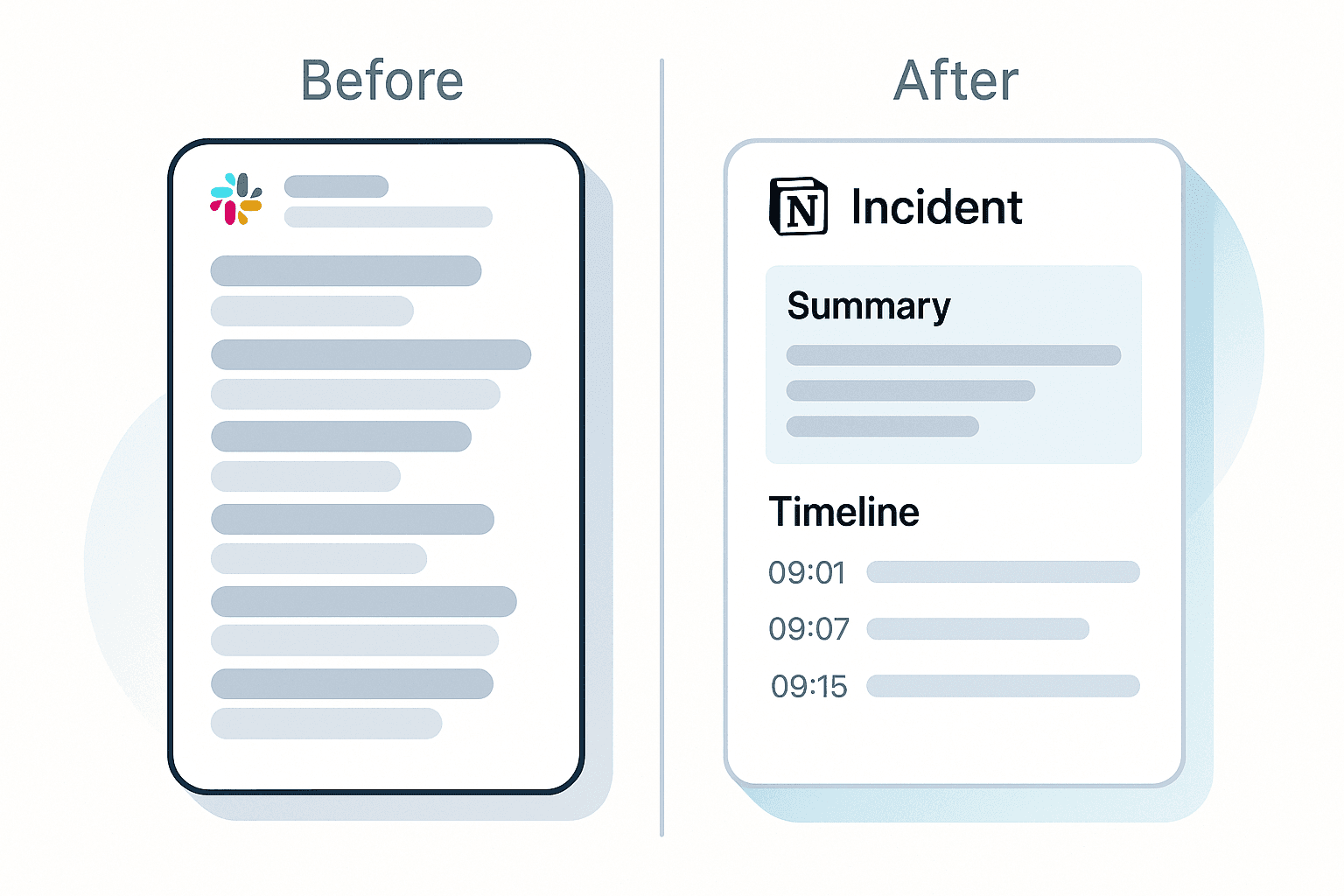
Synced Slack thread replies give Notion the story:
who said what
when they said it
what changed between “WTF” and “Resolved”
1.2 What Happens Without Slack → Notion Thread Sync
Without a real Slack to Notion thread sync, teams do this:
someone promises to “write the post-mortem later”
somebody else screenshot-dumps parts of the thread into a Notion page
timestamps are lost, decisions get misremembered
future incidents start from zero because nobody trusts the previous docs
You’re left with:
Slack history that disappears into search hell
Notion pages that look like a PDF export instead of structured data
leadership asking “Why did this happen again?” and nobody quite knowing
Thread sync isn’t a nice-to-have.
If you care about incidents, customer escalations, audits, or just not repeating yourself, it’s the only sane way to run a Slack Notion integration.
2. What “Sync Slack Thread Replies with Notion” Should Actually Mean
“Thread sync” gets abused as a buzzword, so let’s be precise.
2.1 Requirements for a Grown-Up Slack ↔ Notion Thread Sync
A real Slack to Notion thread sync should:
capture the entire existing Slack thread when you enable it
sync new replies automatically into the corresponding Notion page
preserve timestamps and authors (you need to know when and who)
store messages in a structured way:
as timeline events
keep a stable link back to the original Slack thread
plug into your existing Notion databases (Incidents, Bugs, Escalations, etc.)
be configurable by admins, usable by humans in one click
Tetherly’s Slack Notion integration is built around exactly that.
2.2 Snapshot vs Live Sync vs “Don’t Bother”
For each thread, you have three options:
Snapshot only
Capture the current state, stop there
Good for finished debates or closed tasks
Live thread sync
Capture now, then sync every new reply
Best for incidents, escalations, long-running work
Do nothing
Leave small, low-impact threads purely in Slack
This article is about designing rules for when to use each mode and how Tetherly implements it under the hood.
3. Thread Sync Modes in Tetherly (How the Slack Notion Magic Works)
3.1 Snapshot Mode: “Capture This Once and Move On”
Snapshot mode is:
“This thread is useful for history, but we’re done talking.”
When you send a Slack thread to Notion using Tetherly without live sync:
Tetherly grabs the full history up to that moment
AI writes a Summary:
what happened
the outcome
key decisions or open questions
Messages are stored inside the Notion page as:
a Timeline block, or
a Discussion section under the main content
A permanent link back to the Slack thread is included
Great for:
Product debates that concluded
Design review threads
Leadership discussions with a clear decision
One-off support cases that don’t need ongoing sync
3.2 Live Thread Sync: “Mirror This Until We’re Done”
Live sync is:
“This Slack thread is the operating room. Notion is the medical record.”
When you enable live sync on a message or thread:
Tetherly.ai creates or links a Notion page/record
The full thread history is imported
Every new reply in Slack is:
appended to the Notion page
correctly timestamped
optionally summarised
Common uses:
Production incidents in
#incidentsCustomer escalations in
#cs-escalationsMajor launches with a lot of moving parts
Ops channels where operational history matters
This is what people really mean when they google “sync Slack thread replies with Notion.”
3.3 Choosing How Messages Appear in Notion: Comments vs Timeline vs Log
Tetherly.ai syncs all your replies under a thread to capture the whole story for you - automatically, without any manual intervention.
Timeline
Each message becomes an entry like:
09:13 – Alice: restarted service, latency dropping09:27 – Bob: rolled back deploy, errors cleared
Ideal for incidents and escalations
Comments / Discussion section
Messages appear under a “Messages” heading
Great for product and design conversations
Running log
A simple list of entries appended over time
Perfect for ongoing ops channels or account history pages
This structure is what makes thread sync actually usable a week later.
4. Designing Your Slack → Notion Thread Structure
Thread sync is only half the story. You still need to decide:
“Where in Notion does this thread live, and what does the page look like?”
4.1 Map Threads to the Right Notion Databases
You should never send every synced Slack thread into a single random Notion page.
Use Tetherly.ai's channel mapping so:
Threads from
#incidents→ Incidents databaseThreads from
#cs-escalations→ Escalations databaseThreads from
#product(with a decision) → Product Decisions or Roadmap databaseThreads from
#support→ Support Cases or linked to external ticketing if needed
If you haven’t set that up already, go fix it: How to Organize Data Flow from Slack to Notion (Map Slack Channels to Notion Pages)
Slack → Notion thread sync without good channel mapping = structured chaos.
4.2 Use AI to Summarise, Not Replace, the Thread
Tetherly’s AI layer sits on top of the synced messages to:
write a short summary:
“What happened?”
“What’s the current status?”
extract key fields into Notion:
severity, impact, customer, owner, root cause, etc.
The important bit:
You still keep the full Slack thread in Notion, so the summary isn’t the only source of truth.
For the deeper AI breakdown, go here later: Slack ↔ Notion AI Integration: How Tetherly’s AI Actually Works (Auto-Fill, Summaries, Routing)
5. Step-by-Step: Setting Up Slack Thread Sync with Notion in Tetherly
Let’s walk the actual setup and user flow.
5.1 Prerequisites (Don’t Skip These)
You should already have:
Slack ↔ Notion connection
Basic Slack → Notion capture configured
Channel mappings for core channels (
#incidents,#cs-escalations, etc.)
Thread sync builds on top of all of that.
5.2 Enabling Thread Sync (Admin)
In Tetherly’s admin:
Choose which Slack channels are allowed to use thread sync
e.g. allow in
#incidents,#cs-escalations,#product, but not in#random
Map each of those channels to a Notion database + template
#incidents→ Incidents DB → Incident template#cs-escalations→ Escalations DB → Escalation template
5.3 Using Thread Sync In Slack (Day-to-Day)
From the user’s perspective:
Someone starts or replies to a thread in Slack
Another person clicks “Sync replies to Notion” from the message actions
Tetherly.ai opens a modal:
suggests the destination (Incidents DB, Escalations DB, etc.)
shows whether Thread Sync: ON is selected
pre-fills title, summary, key fields via AI
User confirms → Notion page is created → Slack thread is linked
From that moment on:
New Slack replies are mirrored
The Notion page can be enriched with additional fields and context
Search, dashboards, and notifications all have something real to work with
6. Real Workflows: What Slack Thread Sync Looks Like for Actual Teams
6.1 Engineering & SRE: Incident Timelines That Don’t Require Archaeology
Scenario:
Production outage in
#incidentsSRE posts the initial message
Someone immediately turns on Sync replies
During the incident:
engineers keep talking in Slack (as they should)
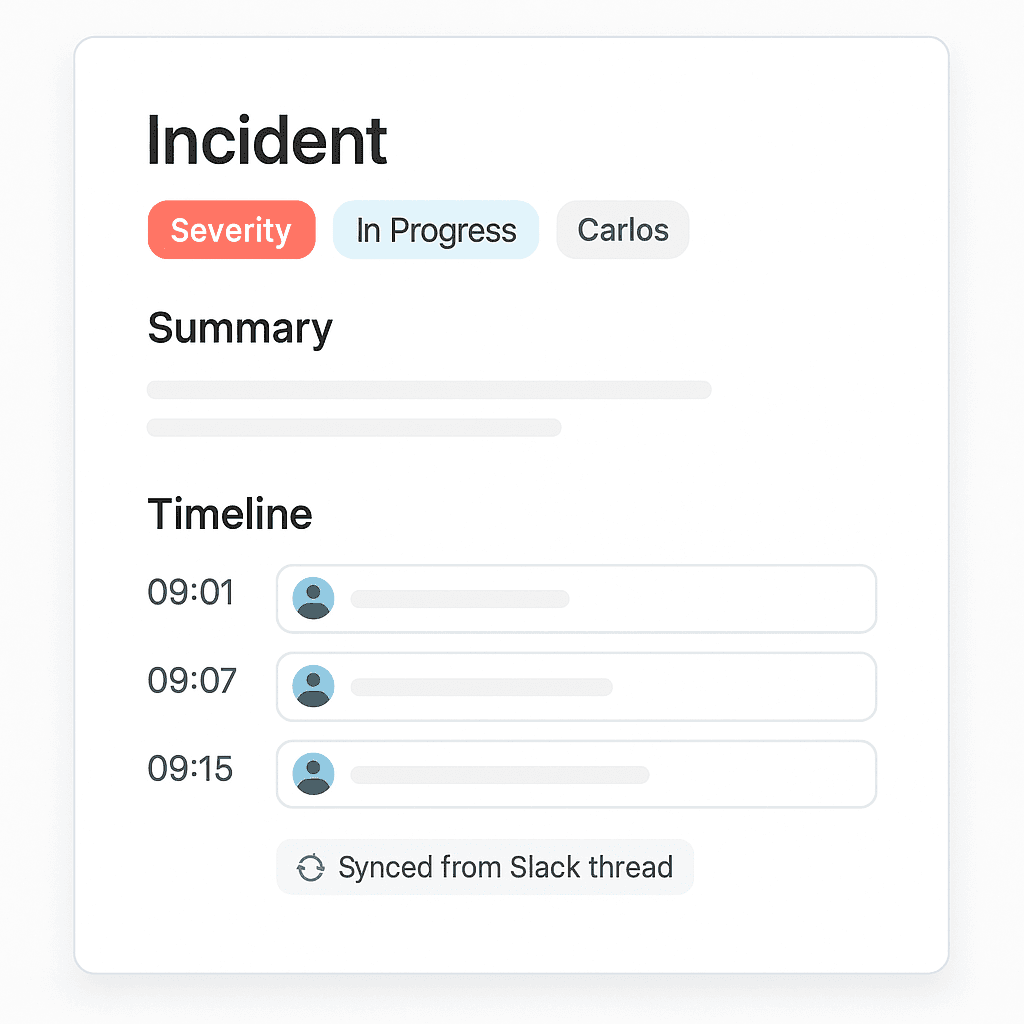
Tetherly quietly builds the Incident timeline in Notion:
09:01 – Alert fired for increased 500s09:07 – Rolled back deploy #342109:15 – Errors returning to baseline
After the incident:
SRE adds impact, root cause, and follow-ups in Notion
Post-incident review is half-done already—timeline and context came for free
Future incidents can be compared to this one with filters and search
Thread sync here means you never again do “screen record the channel” as an incident report.
6.2 Customer Success: Escalations with One Canonical Story
Scenario:
In
#cs-escalations, CSM posts about Acme threatening churnThread sync is enabled as soon as engineering is pulled in
As the conversation evolves:
CSMs add context from calls
PMs clarify feature timelines
Eng shares root cause and workarounds
Tetherly:
logs every reply into an Escalation page in Notion
links it to the Acme account page
tracks status, risk, owners and follow-ups
Next quarter, when leadership asks:
“What exactly happened with Acme six months ago?”
you paste one Notion link instead of doing Slack archaeology.
6.3 Product & Design: Decisions with Honest History
Scenario:
Heated thread in
#productabout changing the onboarding flowPM flips on snapshot + partial sync once it’s clear this will matter
As arguments fly:
Pros/cons, mock screenshots, user feedback all land in the thread
Tetherly copies them into a Product Decision page
AI builds a summary of the debate
When a final decision is made:
PM edits the Notion page to add “Decision” and “Rationale” blocks
Slack link is there for nuance, but the TL;DR sits up top
Later, when someone asks “Why did we do this again?”, you send the decision doc, not a Slack search query.
6.4 Ops & Internal Tools: Running Logs Instead of Random Messages
Scenario:
#opschannel tracking recurring billing job weirdnessInstead of writing separate reports, the team turns on thread sync on a single “Billing job issues” thread
Every time something happens:
messages land in Slack as usual
Tetherly appends entries to a Billing Ops Log page in Notion
Now your ops review looks at a single page with a chronological log, not twenty Slack screenshots in a slide deck.
7. Making Synced Threads Discoverable: Search + Notifications
Thread sync is only worth it if people can find what you synced, and know when it changes.
7.1 Search Notion Incidents from Slack (Instead of Guessing Keywords)
Once you’re syncing Slack threads into Notion databases:
you can use Tetherly search from Slack to pull them back into conversations
Examples:
in
#incidents, search “checkout outage Acme” and get the relevant Incident pagein
#cs, search “Acme escalation downtime alerts” and surface the past escalation
This is powered by the same search layer we’ve already documented: How to Search Notion Docs from Slack Instantly
Because each page is linked to its Slack thread, you’ve effectively built a two-way bridge:
Slack thread → Notion record via thread sync
Notion record → Slack thread via search and links
7.2 Notion → Slack Alerts for Synced Items [H3]
Once incidents and escalations are in Notion, you can build high-signal notifications:
when an Incident’s status changes to “Mitigated” or “Resolved”
when an Escalation risk level goes to “High”
when a follow-up task from an incident is overdue
Those events can trigger Slack notifications in the relevant channels or DMs.
The trick is not to spam your team; use the notifications playbook: Notion Slack notifications without the spam: how Tetherly.ai alerts you properly
Combined with thread sync, alerts stop being vague “something changed somewhere” pings and become:
“Incident #472 (Checkout outage – Acme) changed from Investigating → Resolved.”
—with a direct link to the full timeline.
8. Guardrails: How Not to Abuse Slack Thread Sync
Power tools need guardrails. Slack to Notion thread sync is no different.
8.1 Don’t Sync Everything, Everywhere
Just because you can sync every Slack thread doesn’t mean you should.
Skip thread sync for:
#random,#memes,#watercoolersmall “two-message” questions that resolved instantly
anything that would make HR gently (or not so gently) tap your shoulder
Use thread sync for:
incidents
escalations
major roadmap/strategy decisions
long-running ops issues
project updates with real stakes
8.2 Be Intentional About Privacy and Compliance
Some threads should never leave Slack.
Some absolutely must live in Notion for audit reasons.
Use Tetherly’s mapping and permissions so:
sensitive channels (Legal, HR, Payroll) only sync into locked Notion spaces
external/shared channels only sync into safe, internal-only locations
all thread sync actions are visible and traceable
Good governance isn’t a 40-page doc. It’s Smarter Defaults™.
8.3 Keep Templates Lean, Then Evolve
Don’t build a 30-field incident template just because you can.
Start with:
title
summary
severity
impact
owner
timeline (from Slack)
Then add fields only when they consistently change behaviour or reporting.
Less friction = more people actually turn on thread sync when it matters.
9. Putting It All Together (And What to Do Next)
Slack threads are where your company’s real knowledge lives.
Notion is where that knowledge should live long-term.
Syncing Slack thread replies with Notion using Tetherly means:
no more incident timelines built from blurry screenshots
no more executives asking “why did we do this?” and getting shrugs
no more customer escalations with contradictory stories
Instead, you get:
automated Slack → Notion thread sync for critical channels
clean Notion pages with summaries, timelines, and fields, all powered from Slack
search, dashboards, and alerts that actually tell the truth
Your next moves:
Wire the basics
Stop manual copy-paste
Get your routing clean
Turn on thread sync for the high-stakes channels (this article)
Make everything discoverable
Tune alerts, don’t spam people
Notion Slack notifications without the spam: how Tetherly.ai alerts you properly
And when you’re ready to go deeper into the AI and architecture side of this:
Slack ↔ Notion AI Integration: How Tetherly’s AI Actually Works (Auto-Fill, Summaries, Routing)
The Complete Guide to the Slack ↔ Notion Integration (2025 Edition)
Turn on Slack thread sync once.
Stop re-creating context by hand for the rest of your life.